
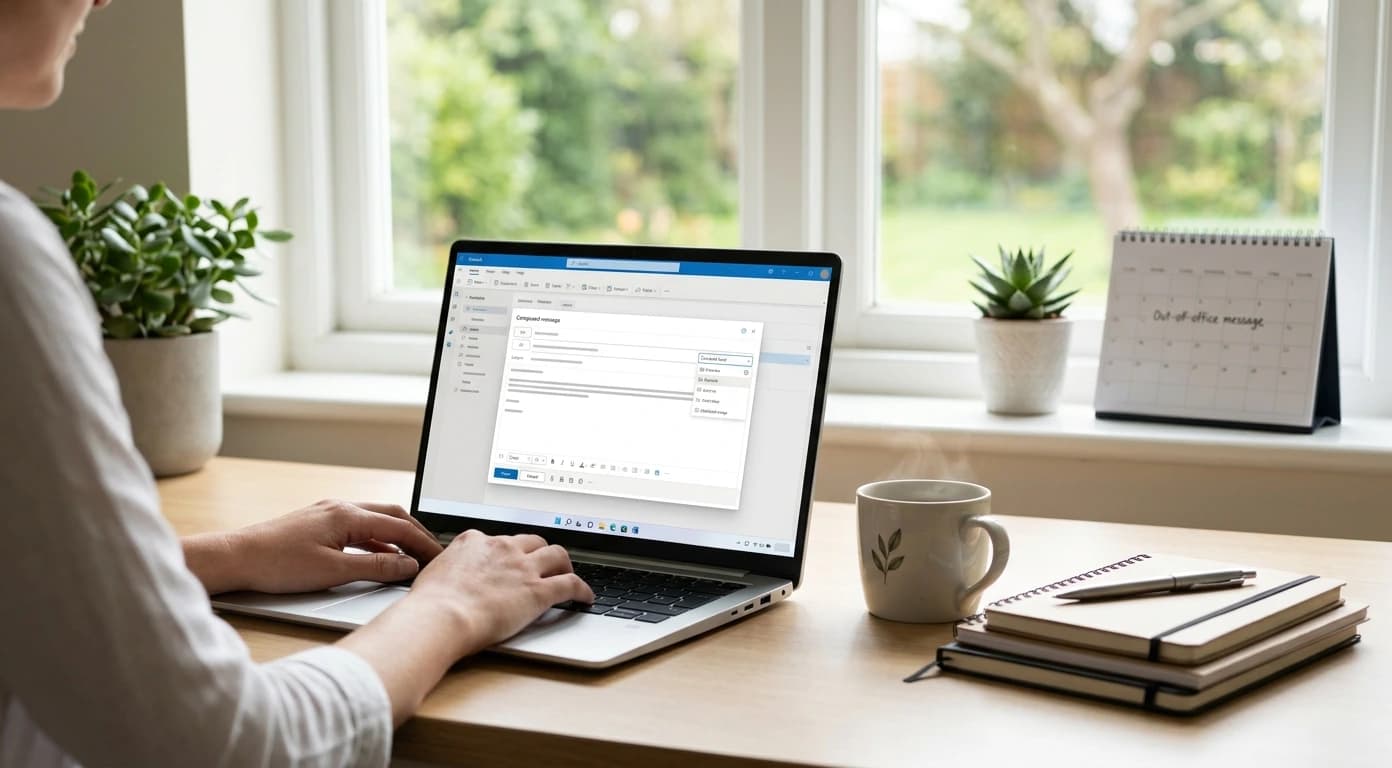
Managing emails can become surprisingly stressful when messages interrupt your day. You may also worry about missed replies, deadlines, or automatic responses. Fortunately, Outlook offers useful features that reduce unnecessary communication pressure. With better scheduling habits, you can protect focus and improve mental clarity.
Why Email Management Often Becomes Difficult
Email problems often start with constant interruptions throughout your workday. You may check your inbox whenever a notification appears. Consequently, small messages can quickly disrupt important work. You might also send emails immediately when waiting could produce better results. For example, late-night emails can create unnecessary expectations for quick responses. Similarly, forgetting an important reply can create additional stress later. Fortunately, Outlook provides scheduling options that help manage these situations effectively. Therefore, learning how to send email with delay from Outlook improves control.
How to Send Email With Delay From Outlook
Outlook provides a convenient way to schedule messages for future delivery. This feature lets you write messages without sending them immediately. First, compose your email in Outlook on the web as usual. Then, select the dropdown beside the Send button. Next, choose Schedule send and select your preferred delivery time. You can choose a suggested time or select a custom time. Afterward, select Send to schedule your message. The scheduled message remains available until its delivery time. You can also open the scheduled message and change your decision. Therefore, this flexibility helps you avoid rushed communication. Learning how to send email with delay from Outlook also improves professionalism. You can prepare messages during productive hours and schedule suitable delivery times.
How to Set an Out of Office in Outlook
Outlook also provides useful features when you cannot respond immediately. Learning how to set an out of office in Outlook prevents unnecessary follow-ups. An automatic response tells people that you remain temporarily unavailable. You can include your return date and alternative contact information when appropriate. This simple message can reduce uncertainty for colleagues and clients. Before leaving, review your automatic response carefully. Keep the message concise, professional, and easy to understand. Also, avoid promising an immediate response after returning. Therefore, a clear out-of-office message protects your attention while away. More importantly, it reduces pressure to monitor messages constantly.
What Causes Email Overload?
Email overload often develops when people treat every message as urgent. However, most messages do not require immediate attention. Notifications can also encourage frequent inbox checking. Each interruption pulls your attention away from your current task. Consequently, switching between messages and work can reduce concentration. Poor planning creates another common problem. Without scheduled communication periods, email can consume your entire day. Therefore, effective email management requires boundaries instead of constant availability. Fortunately, Outlook features can support those boundaries without complicating your workflow.
Practical Ways to Improve Mental Clarity
Start by creating specific periods for checking your inbox. For instance, review messages after completing important focused work. Then, process urgent messages before returning to deeper tasks. Next, schedule routine emails instead of sending everything immediately. This approach separates writing time from delivery time. You should also use automatic responses when you genuinely need uninterrupted time. An out-of-office message communicates your availability without constant monitoring. Additionally, keep your calendar aligned with your priorities. Reserve focused periods for important work before scheduling more meetings. These habits can create more predictable workdays. They can also support mental clarity by reducing unnecessary decisions.
When Basic Outlook Features Need Extra Support
Outlook handles individual email and calendar tasks effectively. However, increasingly busy schedules can still require considerable effort. You may need to balance meetings, deadlines, personal commitments, and focused work. Manually rearranging everything can become another source of daily stress. Therefore, a premium scheduling solution can provide additional support. Reclaim.AI integrates with Microsoft Outlook and helps organize calendar time. Its Outlook integration supports Tasks, Focus Time, Habits, and Smart Meetings. Instead of finding time manually, Reclaim can schedule tasks around commitments. It can also adjust schedules when priorities or calendar conflicts change. This approach complements Outlook instead of replacing your existing calendar. Therefore, you can keep familiar Outlook workflows while adding smarter scheduling support.
Benefits of Upgrading Your Scheduling System
A smarter scheduling system can reduce the effort required to organize your day. First, it can protect time for important tasks before deadlines approach. Second, it can balance priorities against existing calendar commitments. Reclaim also supports Outlook calendars through two-way synchronization. This feature allows scheduled work to appear within your existing calendar. As a result, you spend less time manually moving calendar blocks. Instead, you can focus more attention on completing meaningful work. The biggest benefit involves consistency rather than simply saving minutes. A predictable schedule can make demanding workdays easier to manage. That consistency can support mental clarity by reducing constant planning decisions.
Build a Calmer Email and Calendar Routine
Start by identifying which communications actually require immediate attention. Then, schedule routine messages instead of sending them impulsively. Next, prepare an out-of-office response before planned absences. Finally, protect focused work periods from unnecessary interruptions. If your calendar becomes difficult to manage, consider smarter scheduling support. Reclaim.AI can organize tasks and priorities around your existing Outlook calendar. However, you do not need to change everything at once. Instead, make small improvements that gradually create a manageable workflow.
Conclusion
Learning how to send email with delay from Outlook improves communication control. Likewise, knowing how to set an out of office protects availability boundaries. Together, these features can reduce interruptions and unnecessary communication pressure. However, your calendar also needs structure that protects focused work. Start with Outlook's built-in tools and develop consistent scheduling habits. Then, consider Reclaim.AI if your workload requires automated calendar management. Ultimately, better organization can give you greater control, focus, and mental clarity.